Why a logo can break a scan
A QR code is a grid of modules. Phones look first for the three large squares in the corners, then read the data around them. If a logo sits on one of those corners, or swallows too much of the grid, the camera has nothing solid to lock onto. Color is a problem too. A pale mark on a pale code, or a logo that turns the dark modules light, will fail in a dim hallway even if it looked fine on a bright laptop screen.
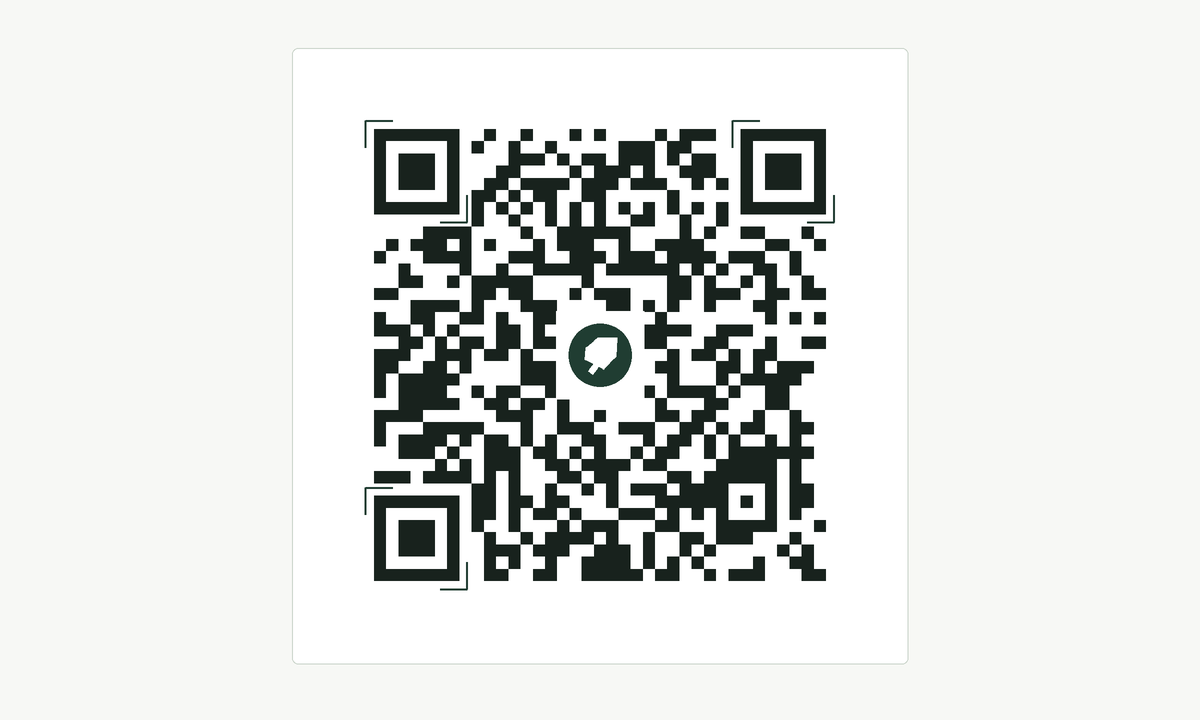
How to place the mark
Keep the logo in the center, and keep it small. As a working rule, stay well inside the middle of the code and leave the three corner squares untouched, along with a quiet margin around the whole pattern. A simple, high-contrast mark works better than a detailed photograph. If your logo has a light background, put a small solid pad behind it so it does not melt into the modules.
Do not invert the code into light modules on a dark poster unless you have tested that exact print. Many cameras are more reliable with a dark code on a light field. If you change the color of the modules, keep strong contrast and test again.
Error correction, in plain terms
QR codes can survive a certain amount of damage. That is why a sticker, a crease, or a small logo does not always ruin them. The usual Wi-Fi payload is short, so there is room to build the code with a higher error-correction level, often called H, which is meant to recover a larger share of unreadable modules. This page should use that higher level whenever a logo is present. Higher correction makes the grid denser, so you should print the code a little larger than a bare code, not smaller.
Error correction is not a license to cover half the square. If the logo is large enough to hide one of the finder patterns, no correction level will save it.
Test it before you print a stack
Add the logo, then scan the on-screen preview with a phone that is not already on the network. Stand at the distance a guest would stand. If it fails, shrink the logo, simplify the mark, or switch back to a code with no logo and compare. Only after a clean scan should you download the PNG or SVG and print.
Print one copy first. Scan that copy in the same light you expect at the counter or the door. Ink that looks black on screen can print gray. A glossy pouch can glare under a downlight. If the paper copy fails, fix the print before you run twenty more.
Back to the wifi QR code generator
The logo is optional. If you only need guests online, the wifi QR code generator on the home page is enough: network name, security type, password, then a download or a printed sign. Use this page when you want the mark in the code, and use the printable Wi-Fi QR code sign when you want a full sheet with the network name written out beside it.