What belongs on the sign
Put three things on the sheet, and keep the rest quiet. First, the QR code, with a clear margin around it. Second, the network name in plain text, large enough to read from a step away. Third, a short instruction, such as Scan to join this Wi-Fi. You can add a logo, but the name and the code matter more. Do not print the password in large type on a sign that faces a street or a shared hallway. The code already holds the password for anyone who can scan or photograph it; there is no need to make that easier for a passerby who is not your guest.
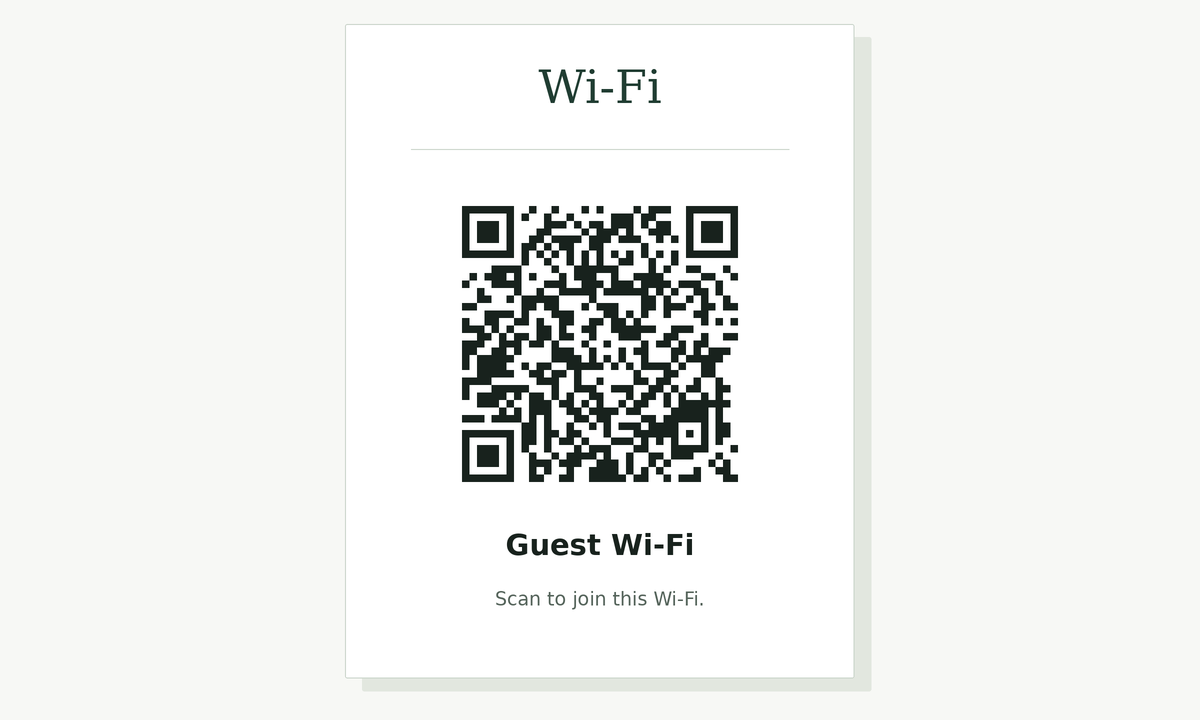
If a guest's camera will not read the code, the printed network name at least tells them what to look for in the Wi-Fi list. That is why the name should stay on the sign even when the code is perfect.
Size, contrast, and paper
For a table card or a small frame, keep the code at least a couple of inches across, not including the margin. For a sign on a wall or a counter back, go larger so a person can scan without leaning in. Use a dark code on a light background. Avoid busy wallpaper behind the pattern, and avoid a tight crop that cuts into the margin.
Ordinary office paper is fine for a test copy. If the sign will sit out for months, a heavier sheet or a simple frame lasts longer and stays flatter. Laminate only if you have checked that the plastic does not glare under the lights you actually use. A shine that looks harmless to your eyes can hide modules from a camera.
Print one copy and scan it where the sign will live, at the time of day you expect guests. Morning light through a window is not the same as a warm bulb at night. If the test fails, enlarge the code, raise the contrast, or move the sign before you print more.
Where to put it
Place the sign at the height and distance of a person who has just walked in, not behind the person working the counter, and not so high that they have to lift a phone over their head. A table, a reception desk, a shelf by the kettle in a rental, or a framed card next to the door all work. Keep a little space in front of it so someone can stand still. Outdoor glass and bright posters often reflect; if you must use a window, test the scan from the sidewalk at noon and after dark.
When to take it down
Replace the sign as soon as the network name or password changes. An old code will fail, or worse, it will still describe a password you no longer use while a copy of the old print sits in a drawer. If you stop sharing the network, take the signs down and discard the prints. Remember that a Wi-Fi QR code is not locked. It is a standard text string in a pattern. Generating it on this computer keeps the password off a server. It does not hide the password from anyone who can see the sign.
Make the code with the wifi QR code generator
Enter the network name, the security type, and the password in the wifi QR code generator, then print from this layout or download the image for your own card. If you want a small mark in the code itself, start on the wifi QR code generator with logo page, test a scan, and only then drop that file into a sign.